Google Ads search terms report
Google’s search terms report can be a gold mine for expanding your keywords.
Book a call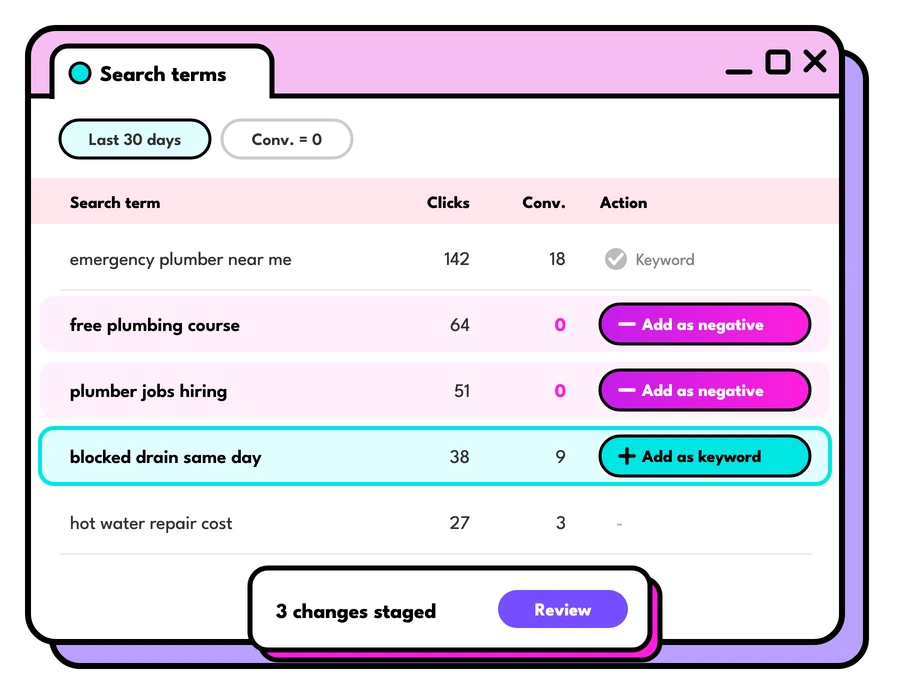


The search terms report in Google Ads lists the actual searches that triggered your ads, with the keyword that matched each one and how it performed. Google defines a search term as "a word or set of words a person enters when searching", while a keyword is what you add to your account. Use the report to find new keywords worth bidding on, add negative keywords for searches that waste money, and check your match types are catching the right queries. Google's help page on the report covers the detail.
Two ideas sit behind everything in this guide. The report shows the real searches your customers used, and those searches are the best source of new keywords and negative keywords you'll find:
- A search term report is a list of the search terms that triggered your ad
- Keyword expansion is a vital part of managing your PPC account
By using the search terms report, you can identify new search terms with high potential, and add them to your keyword list to increase visibility, click through and overall campaign performance.
You can also look for search terms that aren't relevant to your business, such as job seekers, DIY searches or suburbs you don't serve, and add them as negative keywords so you stop paying for those clicks.
- You can view your search terms report within Google Ads
- The aim is to expand the keywords that will perform well for you
- Look for the search terms that already have conversions or get a lot of clicks
- Think to yourself: “if someone were to type this into Google would they be interested in buying my product?”
- If so then add them as keywords and tailor your ads to them.
How to read your Google Ads search terms report
In Google Ads, select Campaigns in the left menu, then open Search terms under Insights and reports. You can look at the whole account, one campaign or a single ad group, and change the date range at the top.
Google lists the searches that a significant number of people used and that triggered your ads, so some of your clicks won't have a search term shown. Google's help page on the report has the full detail.
The columns to watch
The columns that matter most are the search term, its match type, the keyword that matched it, and its clicks, cost and conversions. Use the Columns button to modify the report: add, remove and reorder columns, then save the set you use most so it's ready next time.
- Search term: what the person typed or said.
- Match type: how closely the search relates to the keyword that triggered your ad.
- Keyword: the keyword in your account that caught the search. This column is hidden by default; turn it on under Columns, then Attributes.
- Clicks, cost, conversions and cost per conversion: how each term performed.
Sort by cost first. Terms that spend the most without converting are where you'll save money fastest.
Match types explained
Every keyword has a match type, which decides how loosely Google can connect searches to it. Google's guide to keyword matching options explains each one in full. If you've managed an account for a while, you may remember broad match modifier (+keyword): Google folded it into phrase match in 2021, and new keywords can't use it.
- Broad: ads can show on searches related to your keyword, including ones that don't use its words. It's the default for new keywords.
- Phrase: ads can show on searches that include the meaning of your keyword.
- Exact: ads can show on searches with the same meaning or intent as your keyword.
The Match type column shows which of these produced each search, and marks close variants such as misspellings. If broad keywords keep drifting away from what you sell, add negatives or tighten that keyword's match type. If exact keywords convert well but get few impressions, there's room to add related keywords.
Find new keywords
The best new keywords are search terms that already convert or get plenty of clicks but aren't in your account as keywords yet. Adding them lets you bid on them directly, write ads that use the same words, and send them to the most relevant page.
- Filter to terms with at least one conversion over the last 30 to 90 days.
- Check the Keyword column to see what caught them. If a broad keyword picked up a valuable search, add that search as its own keyword so you can bid on it and write ads for it directly.
- Group new keywords by theme. If several share a theme you don't have an ad group for, create one, with ads and a landing page that speak to it.
- Note any new words customers use, like a nickname for your product or a problem you hadn't thought of. They make good ad headlines and page copy too.
Add negative keywords
Negative keywords stop your ads showing for searches that won't bring in customers: people looking for jobs, free versions, DIY instructions, other locations or products you don't sell.
Tick the terms in the report, select Add as negative keyword, then choose the ad group, the campaign or a shared negative keyword list that covers several campaigns. Google adds them as exact match by default, so put a term in quotation marks if you want a phrase match negative instead.
Negative keywords don't match close variants, so excluding "flowers" won't block a search for "red flower". Add the singular, plural and common misspellings you want blocked. Google's guide to negative keywords has more examples.
Take care with single words. A negative for "free" also blocks "free delivery" and "free quote", which might be some of your best searches.
How often to check
For a new campaign, check weekly for the first couple of months while you find the waste. Once it settles, a monthly look suits most small accounts, and larger accounts that spend more each day are worth a weekly check.
A worked example: one month of search terms
Here's what a monthly review might look like for a hypothetical South Melbourne plumber with a broad match keyword, blocked drain. The numbers are made up, but the decisions are the ones you'll make on your own report.
- "blocked drain plumber south melbourne": 14 clicks, $98, 3 conversions. Add it as a phrase or exact keyword so you can bid on it directly.
- "blocked drain emergency after hours": 5 clicks, $45, 2 conversions. A new theme: give after-hours searches their own ad group, ads and page.
- "how to unblock a drain with bicarb": 22 clicks, $121, no conversions. Someone fixing it themselves. Add "how to unblock" as a phrase match negative.
- "plumber jobs melbourne": 6 clicks, $39, no conversions. A job seeker. Add "jobs" as a negative, which is safe as a single word for a plumbing business.
In this example, $160 of the month's spend went on searches that were never going to book a plumber, and the report showed two new themes worth their own keywords. That's the real insight the report gives you: the words your customers searched, matched against what each one cost.
Search terms in Performance Max
Performance Max campaigns have their own search terms report. Open Search terms under Campaigns and choose "Search terms and landing pages for Performance Max" from the drop-down. Google's guide to the Performance Max report says data is available from March 2023, and you can add negative keywords at account or campaign level for Search and Shopping.
You have less say over which queries are matched than in a keyword based Search campaign, so check this report at least as often. Search terms insights help here too: they group your searches into themes, built from the last 56 days of data, including low-volume searches the main report leaves out.


Keep reading
What are backlinks?
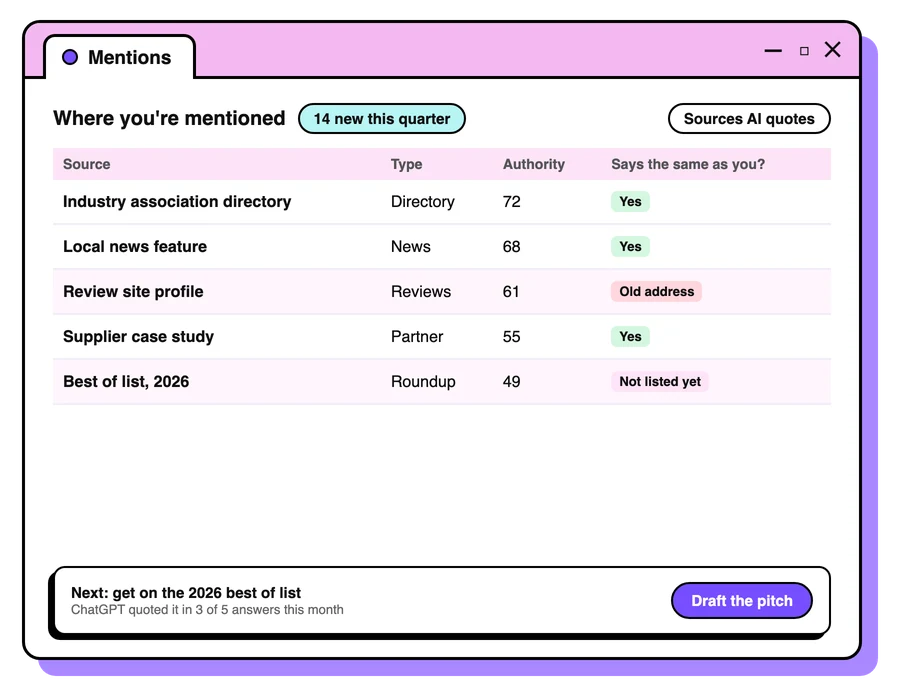
What are backlinks, how Google and AI tools use them, and what makes a good one. A plain guide from Foresight Digital, a Melbourne SEO agency.
Read the guide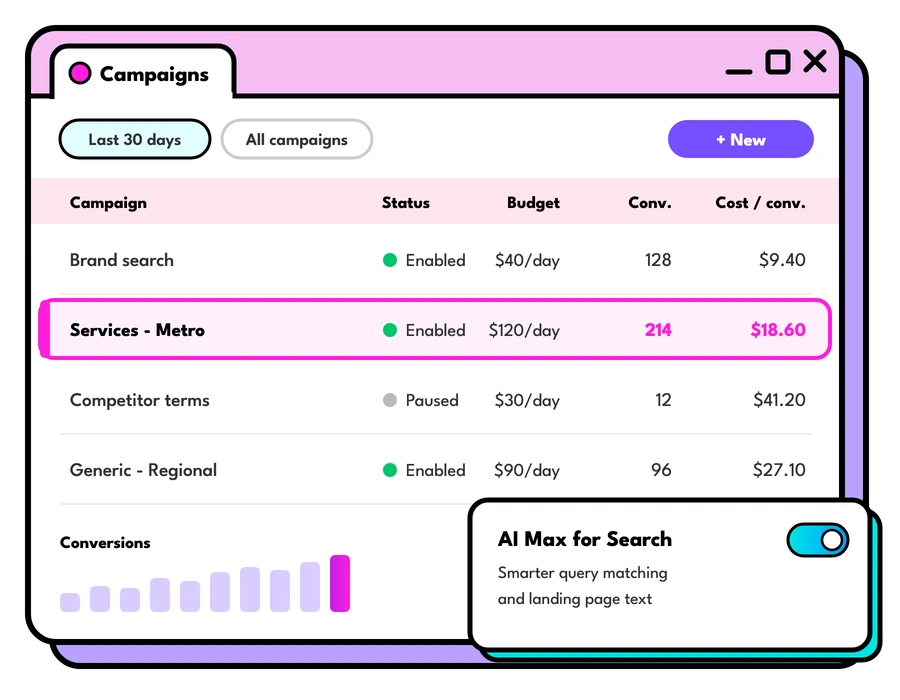
Google Ads cost in Australia
What Google Ads cost in Australia and how to set your daily budget: how Google spends it, what changes the cost per click, and where to start.
Read the guide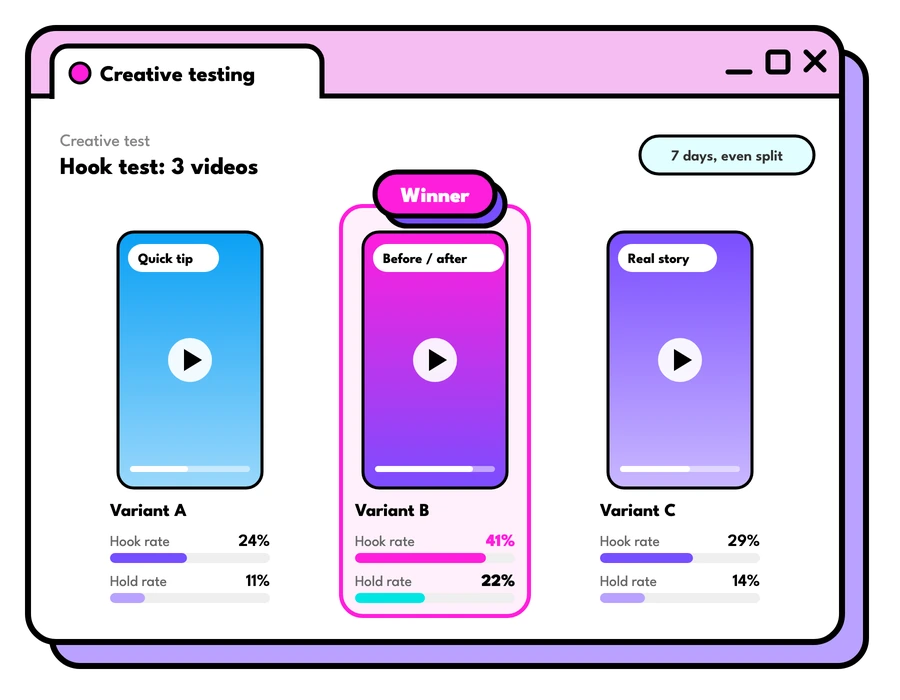
The Facebook ad creative that works
If you could only use one Facebook ad creative, this is the one we'd pick, why it works so well, and how to make your own version of it.
Read the guideLet's talk about your goals
Tell us what you're working towards and we'll show you where we'd start.
Book a strategy call